
Krea AI Review 2026: The Best Real-Time AI Image Generator
Krea AI Review 2026: The Best Real-Time AI Image Generator
Introduction
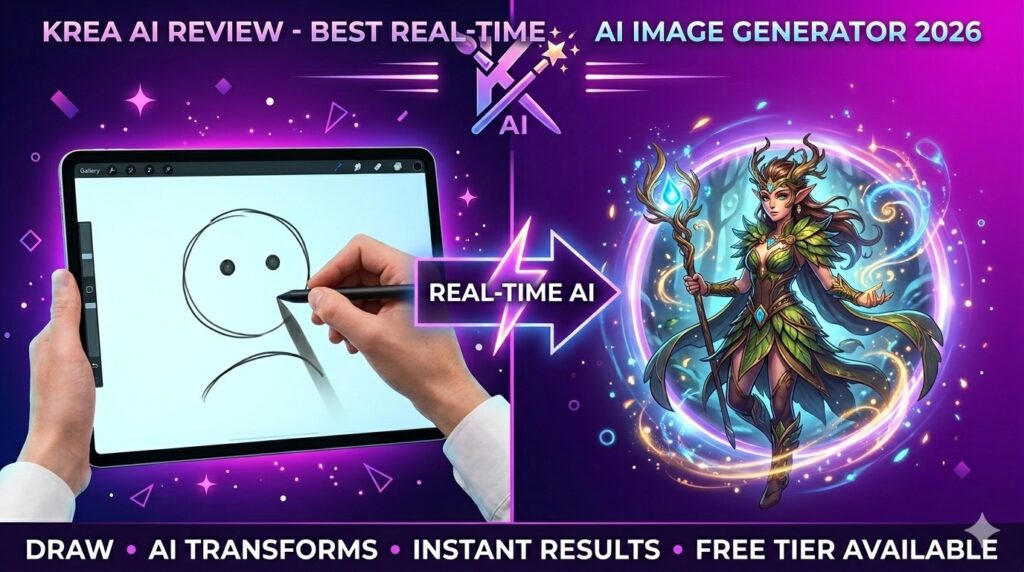
Imagine drawing a simple circle, and AI instantly turns it into a detailed dragon. Imagine sketching a few lines, and AI completes the artwork in real-time. That is Krea AI – the most exciting real-time AI image generator of 2026.
Unlike traditional AI tools where you type a prompt and wait, Krea AI generates images as you draw. Every stroke, every color change, every shape you make – the AI responds instantly. It feels like magic, and it is completely free to start.
Whether you are a professional artist, a beginner, or someone who cannot draw at all, Krea AI helps you create stunning artwork in seconds.
What is Krea AI?
Krea AI is a real-time AI image generation and editing platform that responds to your input instantly. As you draw, paint, or adjust settings on a canvas, the AI generates matching images on the fly. You can also use text prompts, upload existing images, or combine all three methods.
Krea AI launched in late 2024 and gained massive popularity in 2025. Version 2.0, released in early 2026, brought higher resolution, faster generation, video support, and more control options. Today, Krea AI is used by thousands of artists, designers, and content creators worldwide.
Key Features of Krea AI
1. Real-Time Drawing to Image
This is Krea’s killer feature. Open the canvas, start drawing simple shapes, and watch the AI transform them into detailed images in real-time.
| What You Draw | AI Generates |
|---|---|
| A circle with two dots | A face, character, or animal head |
| A rectangle with lines | A building, car, or product |
| A squiggly line | A tree, river, or hair |
| Color patches | Landscapes, skies, or textures |
You can adjust the “AI Influence” slider – low influence means the AI follows your drawing closely; high influence means the AI gets more creative.
2. Text-to-Image (Standard)
Like other AI tools, Krea AI generates images from text prompts. But with real-time updates, you can tweak your prompt and see changes instantly – no waiting 30 seconds for a new generation.
3. Image-to-Image (Reimagine)
Upload any image, and Krea AI generates variations. You can control how much the image changes – from subtle edits to completely new creations.
4. Inpainting & Outpainting
- Inpainting: Select an area of your image and regenerate only that part. Perfect for fixing errors or changing specific elements.
- Outpainting: Extend your image beyond its borders. The AI fills in the new areas seamlessly.
5. Video Generation (New in v2)
Krea AI v2 can generate short video clips (up to 5 seconds) from images or drawings. You can animate still images, create looping backgrounds, or bring characters to life.
6. Upscaling & Enhancement
Enhance any image to higher resolution (up to 4K) with better details, sharper edges, and improved colors. This works on AI-generated images AND your own photos.
7. Multiple AI Models
Krea AI lets you switch between different AI models:
- Krea Base – Fast, general purpose
- Krea Real – Photorealistic results
- Krea Anime – Anime and manga style
- Krea Fantasy – Creative, dreamlike images
- Custom models – Upload your own
8. Layer Support
Unlike most AI tools, Krea AI supports layers. You can:
- Draw on separate layers
- Apply AI to specific layers only
- Combine AI-generated and hand-drawn elements
- Create complex compositions
How to Use Krea AI (Step by Step)
| Step | Action |
|---|---|
| 1 | Go to krea.ai |
| 2 | Sign up with Google or email (free) |
| 3 | Click “Create” or “Real-time Canvas” |
| 4 | Choose your AI model (Base, Real, Anime, etc.) |
| 5 | Start drawing with your mouse, stylus, or finger |
| 6 | Watch AI generate images in real-time |
| 7 | Adjust “AI Influence” slider for more/less control |
| 8 | Add text prompts for better results |
| 9 | Download your image (PNG or JPG) |
Pricing: Free vs Paid
| Feature | Free Tier | Pro Plan | Ultra Plan |
|---|---|---|---|
| Monthly Cost | $0 | $10/month | $30/month |
| Generations | 100/month | 1,000/month | 5,000/month |
| Resolution | Up to 1024×1024 | Up to 2048×2048 | Up to 4K |
| Real-time Canvas | ✅ Yes | ✅ Yes | ✅ Yes (priority) |
| Video Generation | ❌ No | ✅ 5 sec | ✅ 10 sec |
| Inpainting | ✅ Limited | ✅ Full | ✅ Full |
| Outpainting | ✅ Limited | ✅ Full | ✅ Full |
| Upscaling | ✅ Up to 2x | ✅ Up to 4x | ✅ Up to 8x |
| Layer Support | 3 layers | 10 layers | Unlimited |
| Commercial Use | ❌ No | ✅ Yes | ✅ Yes |
| Queue Priority | Normal | High | Highest |
Free tier is perfect for beginners and testing. Pro plan is recommended for regular use. Ultra plan for professionals.
Pros and Cons
✅ Pros
- Real-time generation – Unique and addictive
- Very beginner-friendly – No skills needed
- Layer support – Most AI tools don’t have this
- Multiple AI models – Base, Real, Anime, Fantasy
- Video generation – New in v2
- Inpainting & outpainting – Professional features
- Fast – Instant results
- Fun to use – Feels like magic
❌ Cons
- Free tier limited (100 images/month)
- Watermark on free images
- No offline version – Internet required
- Can be addictive – Time flies when using it
- Learning curve for advanced features
Krea AI vs Competitors
| Feature | Krea AI | Midjourney | Leonardo.ai | Stable Diffusion |
|---|---|---|---|---|
| Real-time Drawing | ✅ Yes | ❌ No | ❌ No | ❌ No |
| Free Tier | 100/month | ❌ No | 150/day | 100% free |
| Layers | ✅ Yes | ❌ No | ❌ No | ❌ No |
| Video | ✅ Yes | ❌ No | ❌ No | ❌ No |
| Ease of Use | Very Easy | Moderate | Easy | Hard |
| Best For | Interactive creation | Art community | Game assets | Full control |
Verdict: Krea AI is the best choice for interactive, real-time image generation. For community and artistic style, choose Midjourney. For game assets, choose Leonardo. For full control and privacy, choose Stable Diffusion.
Who Should Use Krea AI?
| User Type | Why Use Krea AI? |
|---|---|
| Digital artists | Speed up your workflow, overcome creative blocks |
| Beginners | Learn to draw with AI assistance |
| Graphic designers | Quick mockups and concept art |
| Content creators | Thumbnails, social media graphics |
| Game developers | Character and environment concepts |
| Hobbyists | Fun and creative exploration |
| Teachers | Demonstrate AI and art concepts |
Tips for Best Results
- Use simple shapes first – Circles, squares, lines work best
- Add color – Colors guide the AI significantly
- Use text prompts – Combine drawing with text for better results
- Adjust AI Influence – Lower for more control, higher for creativity
- Use layers – Draw background on one layer, subject on another
- Try different models – Base for speed, Real for photos, Anime for cartoons
- Start with sketches – Even messy sketches work surprisingly well
- Generate variations – Click the dice icon for different interpretations
Real-Time Drawing Examples
| What You Draw | Prompt (Optional) | What AI Creates |
|---|---|---|
| A brown circle with green top | “apple with leaf” | Realistic red or green apple |
| Blue rectangle with white top | “house with chimney” | Detailed house with windows and door |
| Curved line + green patches | “mountain landscape” | Beautiful mountain scenery with trees |
| Circle with two dots and smile | “happy cartoon character” | Adorable animated character |
| Random squiggles | “fantasy creature” | Unique monster or alien design |
Final Verdict
Krea AI is not trying to replace professional artists. Instead, it is a creative playground that makes AI image generation fun, interactive, and accessible to everyone. The real-time drawing feature is genuinely unique and addictive.
If you are a professional artist, Krea AI can speed up your workflow and help overcome creative blocks. If you are a beginner, it is the most fun way to learn about art and AI. If you are just looking for a good time, Krea AI is pure magic.
The free tier is generous enough to get hooked. And once you are hooked, the Pro plan at $10/month is worth every penny.
Rating: 4.7/5
Best for: Interactive creation, beginners, artists
Worst for: Offline use, unlimited free generations