
Google Vids AI Review 2026: The Best AI Video Generator for Google Workspace
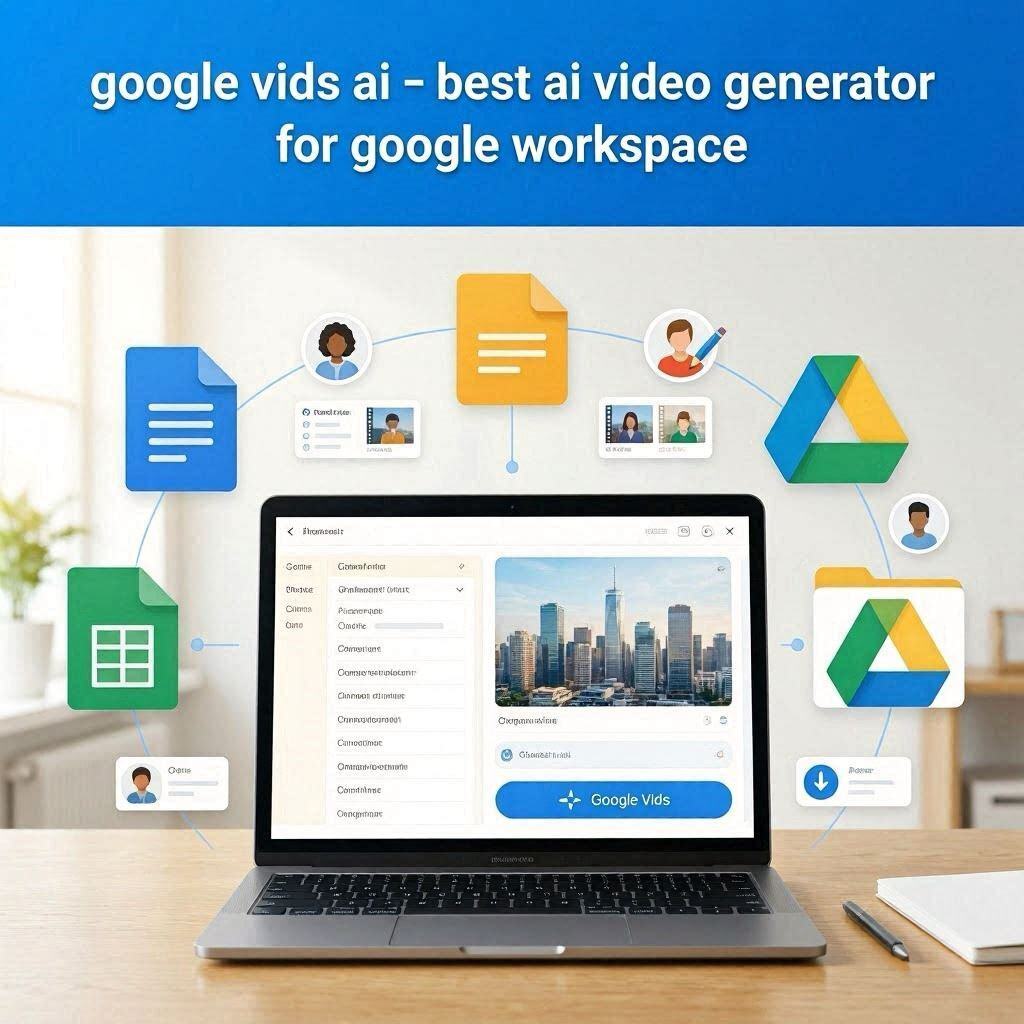
Google Vids AI Review 2026: The Best AI Video Generator for Google WorkspaceIntroductionYou know Google Docs for documents. Google Slides for presentations. Google Sheets for spreadsheets. Now, meet the newest member of the Google Workspace family: Google Vids.Google Vids is an AI-powered video creation tool built directly into Google Workspace. Think of it as “Google Docs for video” – where you can write a script, collaborate with your team, and AI generates a complete video with stock footage, images, and background music.In 2026, Google Vids is changing how businesses create video content. No more hiring expensive video editors. No more learning complex software. Just write, collaborate, and generate.What is Google Vids?Google Vids is a cloud-based AI video generator that is fully integrated with Google Workspace. It works like other Google apps – Docs, Slides, Sheets – so if you know those, you already know how to use Vids.How it works:Step Action1 Open Google Vids in your Workspace2 Write your script or paste your content3 AI analyzes your script and suggests visuals4 AI generates a video with stock footage, images, and music5 You review and edit (like editing a Google Doc)6 Your team collaborates in real-time7 Export and shareThe magic: It’s collaborative video editing, just like Google Docs. Multiple people can edit the video at the same time. Everyone sees changes in real-time.Key Features of Google Vids1. AI Video Generation (The Main Feature)Google Vids uses Google’s Gemini AI to generate videos from your script:What You Provide What AI CreatesA script or text Complete video with narration, visuals, musicA topic (e.g., “Q3 Marketing Update”) Full presentation-style videoExisting Google Docs content AI converts doc to videoGoogle Slides presentation AI turns slides into videoThe result: A professional-looking video in minutes, not days.2. Integration with Google WorkspaceGoogle Vids works seamlessly with your existing tools:Integration What It DoesGoogle Docs Convert documents to videosGoogle Slides Turn presentations into videosGoogle Drive Access and save all your mediaGoogle Meet Record meetings, turn into videosGmail Share videos directly from emailNo need to switch between tools. Everything is connected.3. Collaborative Video EditingLike Google Docs, Vids supports real-time collaboration:Feature What It DoesMultiple editors Several people edit at onceLive cursors See what others are editingComments Leave feedback on the videoSuggestions Suggest changes without editing directlyVersion history See all changes, revert if neededPerfect for: Teams, remote work, client feedback.4. Stock Media LibraryGoogle Vids includes access to millions of royalty-free assets:Media Type Library Size Use CasesStock videos 10+ million clips Backgrounds, B-roll, scenesStock images 15+ million photos Thumbnails, slide backgroundsMusic tracks 100,000+ Background musicSound effects 10,000+ Transitions, emphasisNo need to find your own media. Google has everything you need.5. Templates for EverythingChoose from professionally designed templates:Template Category ExamplesBusiness Reports, updates, presentationsTraining Onboarding, tutorials, coursesMarketing Product demos, social media adsHR Announcements, policies, benefitsEducation Lessons, lectures, student projectsInternal Comms CEO updates, team meetingsStart fast. Choose a template, add your content, generate.6. AI Voiceover & NarrationGoogle Vids includes high-quality AI voiceovers:Feature What It DoesText-to-speech Type, AI narrates your scriptMultiple voices Male, female, different accentsLanguages 50+ languages supportedTone control Professional, friendly, enthusiasticNo need to record your own voice. AI sounds professional.7. Auto-Captions & SubtitlesAutomatically add captions to your videos:Feature What It DoesAuto-transcription Converts speech to textWord-by-word timing Captions sync perfectlyCustom styling Font, color, size, positionMultiple languages Supports 50+ languagesCaptions increase engagement by up to 40%.8. One-Click Share & ExportShare your video instantly:Method What It DoesShare link Share directly from GoogleDownload MP4 Download for offline usePost to YouTube Upload directly to YouTubeEmbed Embed in websites or docsEmail Send via GmailHow to Use Google Vids (Step by Step)Step Action1 Open Google Workspace2 Open Google Vids3 Click “Create” or “New Video”4 Choose a template or start from scratch5 Write or paste your script6 AI suggests visuals and music7 Review and edit (like editing a Google Doc)8 Add team members to collaborate9 Preview the video10 Share, download, or exportPricing: Google VidsFeature Google Workspace (Business) Google Workspace (Enterprise)Monthly Cost $12–$25/user/month CustomAI Generation ✅ Yes (Gemini AI) ✅ Yes (Gemini AI)Stock Media ✅ Limited ✅ Full libraryCollaboration ✅ Yes ✅ YesTemplates ✅ Yes ✅ YesExport Formats MP4, link, embed All formatsAdmin Controls Basic AdvancedGoogle Vids is included with Gemini for Workspace add-ons.Real-World ExamplesExample 1: Business Report VideoScenario: A manager needs to create a Q3 report video.Google Vids Workflow:Paste Q3 data and textAI generates a 3-minute video with graphs and narrationTeam reviews and adds feedbackExport and send to entire companyTime saved: Days → Hours.Example 2: Training VideoScenario: HR needs to create a 10-minute onboarding video.Google Vids Workflow:Upload existing PowerPointAI converts to video with avatar narrationAdd company logo and colorsShare link with new hiresTime saved: 2 days → 2 hours.Example 3: Marketing PromoScenario: Marketing needs a 30-second product video.Google Vids Workflow:Type product descriptionAI generates video with stock footageAdd product imagesDownload and post to social mediaResult: Professional video without hiring a production team.Pros and Cons✅ ProsIntegrated – Works with all Google toolsCollaborative – Like Google Docs for videoEasy to use – No editing skills neededAI-powered – Write, AI does the restTemplates – Professional designsStock media – Millions of assetsReal-time collaboration – Team editingAuto-captions – Boost engagement❌ ConsRequires Google Workspace – Not for personal use (yet)Internet required – No offline modeAI is new – Still improvingLimited editing – Not for complex videosNot for YouTube creators – More for businessWho Should Use Google Vids?User Type Why Use Google Vids?Business users Reports, updates, presentationsTeams Collaborative video creationHR departments Training, onboardingMarketing Promo videos, social mediaEducators Video lessons, lecturesInternal comms Company updates, announcementsGoogle Vids vs CompetitorsFeature Google Vids Canva CapCut SynthesiaIntegration Google Workspace Design suite Video editor Avatar videosCollaboration ✅ Real-time ✅ Yes ❌ No ✅ YesAI Generation ✅ Yes ✅ Yes ✅ Yes ✅ YesFree Tier Workspace Yes Yes TrialBest For Business Design Social media AvatarsVerdict: Google Vids is the best for Google Workspace users. Canva is better for design. CapCut is better for social media.Frequently Asked QuestionsIs Google Vids free?It’s included with Gemini for Google Workspace add-ons.Can I use Google Vids without Google Workspace?Currently, it’s only available for Workspace customers.Does Google Vids support voiceover?Yes, AI text-to-speech with multiple voices and languages.Can I collaborate with my team?Yes, real-time collaboration like Google Docs.Can I export to YouTube?Yes, directly upload to YouTube.Final Verdict Google Vids is not trying to replace professional video editors. Instead, it solves a specific problem – making video creation accessible to everyone in a business environment.If you use Google Workspace, Vids is a natural extension of your workflow.If you need to create business videos quickly with your team, Vids is perfect.If you’re looking for a collaborative video editor, Vids is the best option.Rating: 4.5/5Best for: Google Workspace users, business teams, internal communications Worst for: Personal use, advanced video editing, YouTube creators.